Photo preparation guide
How to Remove EXIF Metadata on iPhone
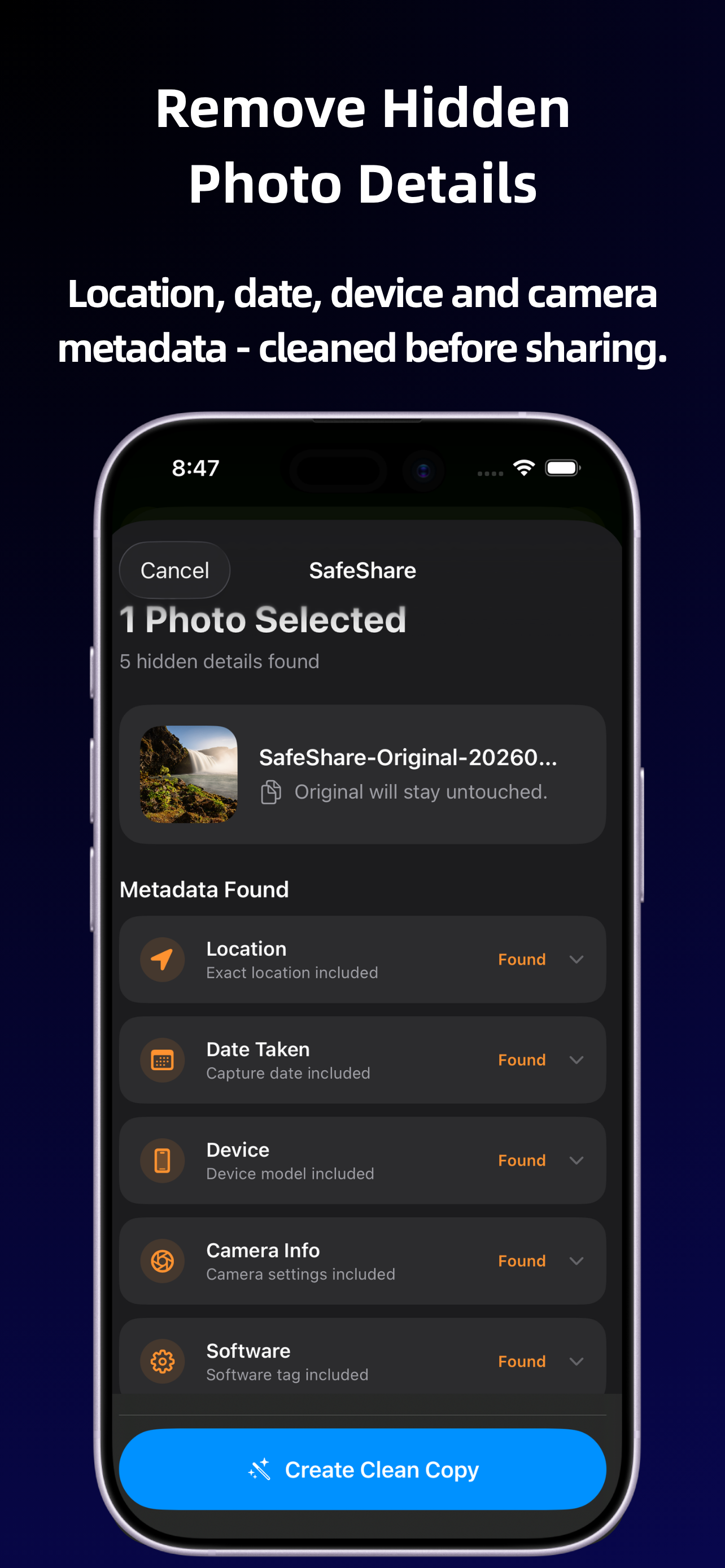
To remove supported EXIF-style photo metadata on iPhone, select your photo, open Share and choose SafeShare. Review the detected details, create a cleaned copy, and share that copy. SafeShare removes common metadata where possible, including supported location, date, device, camera and software information. It does not guarantee removal of every field in every file format.
What does EXIF mean in a photo?
EXIF stands for Exchangeable image file format. It is a standard used for recording information associated with digital images, including capture details. A photo may contain camera settings, a date and time, or GPS information in EXIF fields. The presence of a field depends on the camera, file and software involved.
The CIPA standards directory publishes the EXIF specification. You do not need to learn individual tag names to prepare a picture for sharing. The practical question is which embedded details your outgoing file contains and whether you want those details included.
Why not call all photo information EXIF?
Metadata is the broader term. Image formats and editing tools may use other structures for descriptive information, and information displayed by a photo library is not necessarily a field embedded in the exported file. Searching for an EXIF remover often means you want general metadata cleanup, but the technical distinction matters when checking a result.
A capture timestamp, a file's creation time and a date displayed by a library need not be the same thing. Likewise, a saved output can have a file size and dimensions even after common capture metadata is removed. Treat those observations separately rather than assuming any visible date or property proves that the original EXIF survived.
What information might you want to remove?
Device and camera details can describe how a picture was taken. Timestamps can record capture or processing information where present. Location fields can record coordinates. Software tags may indicate an application involved in saving the image. These details can be useful in your own archive while being unnecessary in a copy sent to someone else.
Not every file contains all of these examples, and a previous export may already have changed them. Review the actual detected metadata rather than treating a standard's list of possible fields as a description of your particular picture. For the broader task, see removing photo metadata on iPhone.
Clean supported metadata with SafeShare
- Choose the intended photo. Start with the version you want to send from Photos or another app that exposes the iOS Share Sheet.
- Tap Share and select SafeShare. This puts cleanup ahead of the final delivery step.
- Review what SafeShare detects. Read the location, date, device, camera or software details shown for that file. Do not assume a blank field means every metadata structure was exhaustively checked.
- Create a clean copy. SafeShare removes supported details while leaving your original untouched. Face blur is a separate optional change for photos.
- Share the clean version. Use the new output in the onward share rather than reselecting the original from your library.
What does cleanup leave unchanged?
Metadata removal does not remove a face, a landmark or text visible in the image. It also does not make the file cease to have ordinary properties needed to display it. If your objective includes obscuring a person, review that need separately from the hidden metadata.
SafeShare is a photo-preparation utility, not a forensic certification service. File format, source software, iOS and the sharing destination can affect what remains or gets added afterward. If a particular field matters for your task, inspect the cleaned output with a viewer that supports that file type and field.
Should you keep the original?
A clean sharing copy lets you retain capture details in your own original for organization or future reference. SafeShare does not modify that original. Keep track of which file you are sending: the convenience of retaining both versions also means you can accidentally choose the original in a later share.
Processing happens on your device, with no account required and no upload to a SafeShare server. Read the privacy policy for temporary-file behavior. For a fuller explanation of hidden information and visible clues, see photo metadata and privacy. Removing EXIF-style details reduces embedded information; it does not guarantee anonymity.