Photo preparation guide
How to Remove Photo Metadata on iPhone
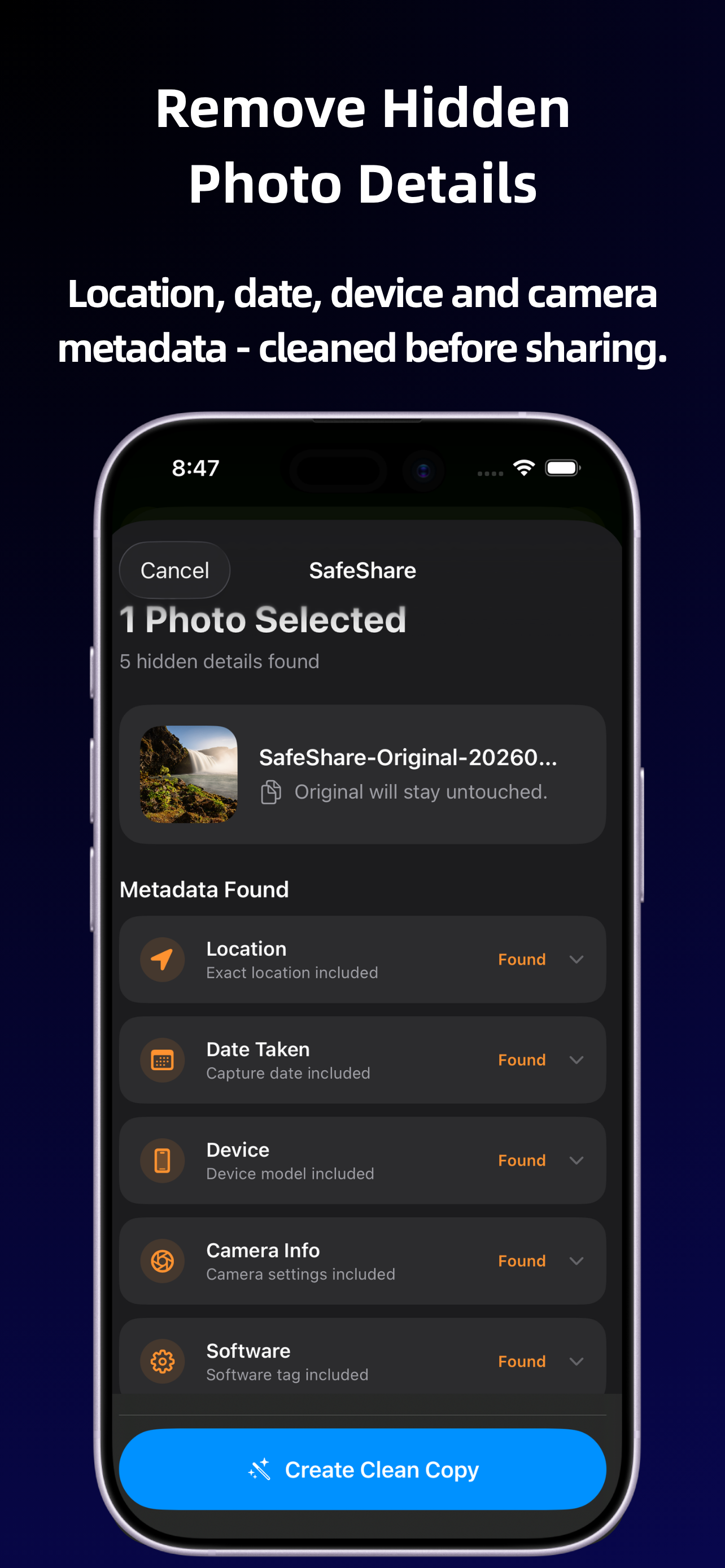
To remove photo metadata on iPhone with SafeShare, select a photo, tap Share and choose SafeShare. Review the information it detects, create a clean copy, and share that copy onward. Your original stays unchanged. SafeShare removes common hidden metadata where possible; the result can depend on the file format, source app, iOS and sharing destination.
What is photo metadata?
Photo metadata is information associated with an image beyond the picture you see. A photo may include a capture date, camera or device details, software tags and location coordinates. These details can help organize a photo library, but they are not always needed by the person receiving a picture.
Not every photo contains the same fields. A camera photo, a downloaded image and an exported edit can carry different information. Some details describe how the picture was captured; others describe how a file was saved. The word metadata covers several kinds of information, rather than a single setting that is present in every image.
When is a clean copy useful?
You might want to send a product photo to a buyer, contribute a picture to a group, or post an image without its embedded capture details. A clean copy lets you keep useful information in your own original while preparing a separate version for that particular audience. You do not have to remove the original's location just to send a copy without it.
Decide what you want to change before starting. Removing hidden metadata and obscuring a face address different parts of a photo. Metadata cleanup does not edit a street sign, a face or writing visible in the image. If your question is specifically about coordinates, see removing location data from a photo.
Remove metadata with SafeShare
- Choose the photo you intend to send. Start in Photos or another app that offers the iPhone Share Sheet. Check that you have selected the intended image, especially if similar copies are in your library.
- Tap Share and choose SafeShare. This brings the selected media into the cleanup workflow before you send it to the eventual recipient.
- Review the detected information. SafeShare shows metadata it finds, such as location, capture date, device or camera details. Read the actual result rather than assuming every example field is present.
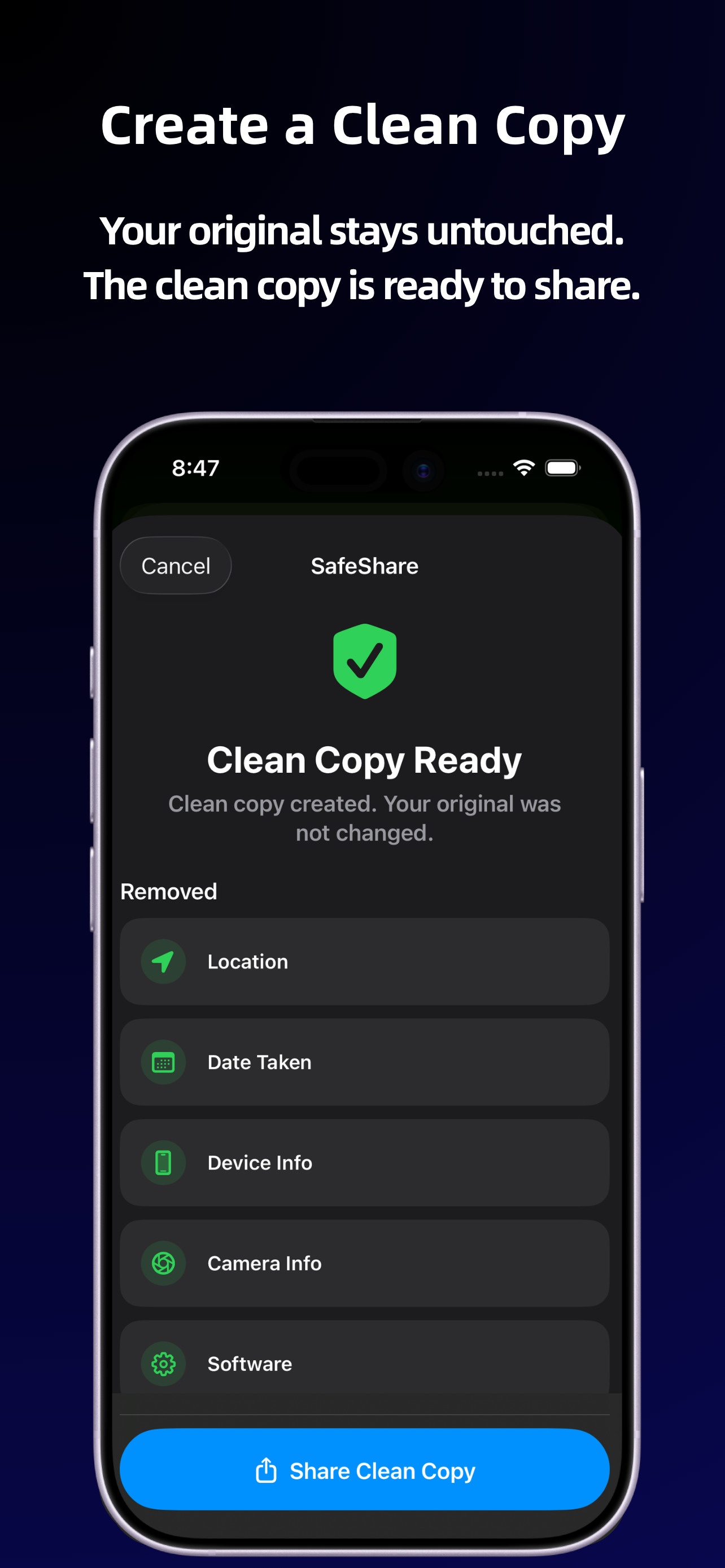
- Create a clean copy. SafeShare removes supported metadata. You can also use its automatic face blur for photos when needed, then review the visual result.
- Send the new version. Share the cleaned copy onward, leaving your original file untouched. Returning to the original and sharing it separately would bypass the cleanup you just performed.
What should you check afterward?
Check both the picture and the file you are about to send. Make sure the image is the one you intended and that any face blur covers what you wanted to obscure. If you inspect a saved output in another metadata viewer, inspect the cleaned file itself. Looking at the original's information cannot tell you what is in the new copy.
A file can still have details such as dimensions or a file size, and another app may add information when it saves or exports the image. An information panel is useful for checking fields it displays, but it is not a complete audit of every possible metadata container. SafeShare does not promise universal removal across all formats.
Is metadata the same as EXIF?
EXIF is one common way of recording capture information, but photo metadata is a broader category. Different formats and editing tools can store details differently. If you are looking for an EXIF remover, the guide to removing EXIF metadata on iPhone explains why format support matters.
Does removing metadata make a photo anonymous?
No. Removing embedded details does not remove information visible in the picture. People may recognize a person, a room, a landmark or an event from image content. Choose an appropriate picture and audience as well as cleaning the file.
SafeShare processes supported media on your device, requires no account, and does not upload media to a SafeShare server. The privacy policy explains temporary clean copies and remaining limitations. For the complete sending sequence, follow sharing a photo without metadata.