Photo preparation guide
How to Blur Faces in Photos on iPhone
To blur faces in a photo on iPhone with SafeShare, choose the photo, open Share and select SafeShare. Use the optional automatic face blur when preparing the clean copy, review the result, and share the new version. SafeShare can detect and blur faces in photos, but detection and coverage are not guaranteed. Your original remains unchanged.
When might you want to obscure a face?
You may want to share the atmosphere of an event without showing a bystander's face, send a family activity picture to a wider group, or include a photo in a public post while respecting someone's preference. Start by deciding which people should be visible to the intended audience. Blurring is one possible part of that decision.
A face blur changes the visible image. That is different from removing embedded metadata such as coordinates or a capture date. A photo can have no location metadata and still show a recognizable person clearly. It can also have obscured faces while retaining hidden capture details unless you clean those too.
Prepare the photo in SafeShare
- Select the picture you want to send. Use a photo rather than assuming the photo face-blur feature applies to video. Choose the version with the framing you intend to share.
- Tap Share and choose SafeShare. Bring the photo into the cleanup workflow before sending it to your final destination.
- Review detected metadata. Check the embedded information SafeShare finds so you can address hidden details alongside the visible faces.
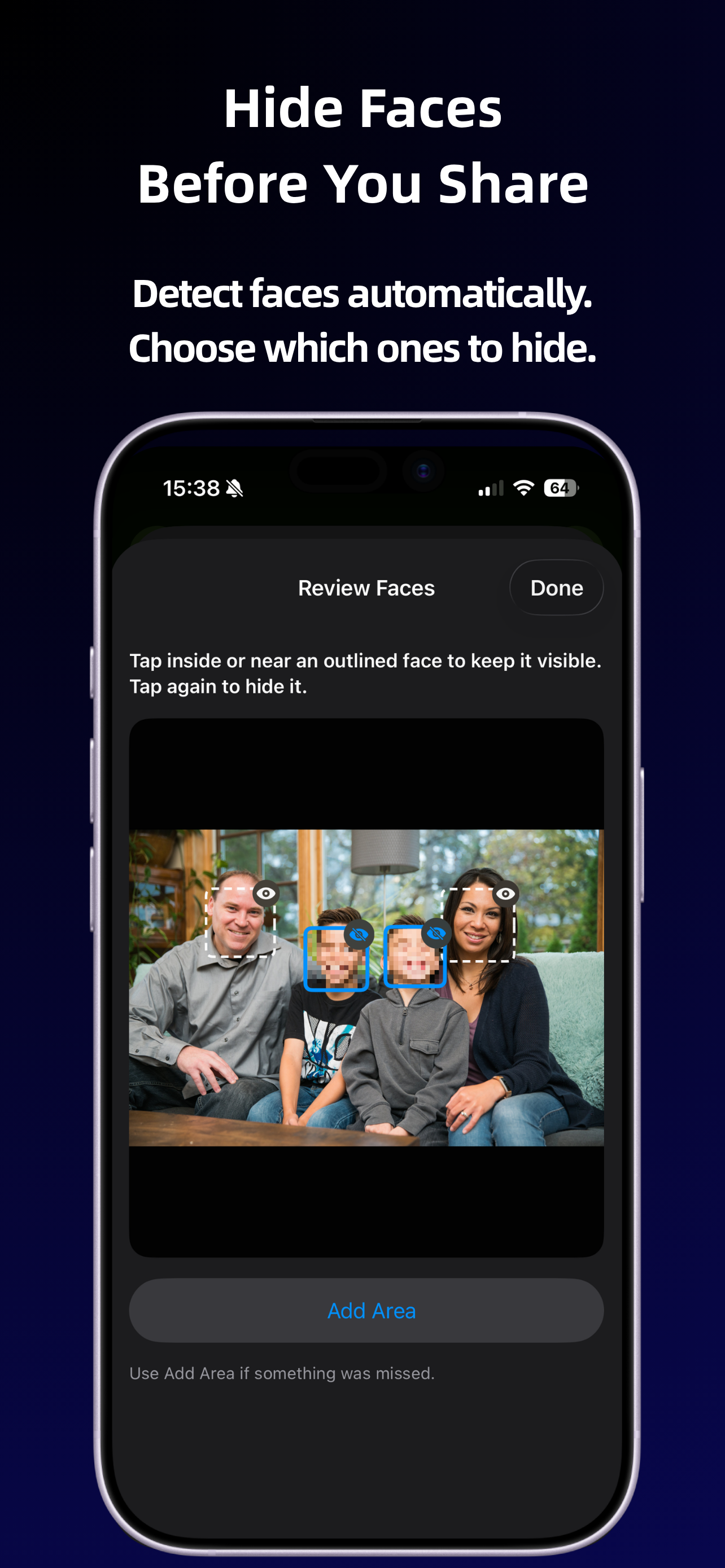
- Use the optional automatic face blur. Prepare the cleaned photo with detected faces obscured where needed. Do not treat automatic detection as a substitute for your review.
- Check the visible result. Look carefully at the faces you intended to hide, including small or partially visible faces. If the result does not meet your goal, do not share that version.
- Share the cleaned copy onward. SafeShare creates a separate copy; your original photo stays untouched in the source.
What should you look for during review?
Check the whole frame, not just the most prominent person. Small faces in the background, faces near an edge and faces visible in reflections are worth reviewing. A sideways or partly covered face can be easy to overlook. These are useful review checks, not promises about which faces SafeShare will or will not detect.
If the picture includes several people, inspect each person whose face you intended to obscure. Do not infer that all faces were found because one blur looks correct. Detection can be imperfect, and a blur area may not cover the details you want hidden. The final picture is what your recipient will see.
What if a face is missed?
If a face remains visible, pause the share. The Review Faces screen includes Add Area for something the automatic detection missed. Review the added area and the final copy before sending; select a different picture or change the audience if the result still does not meet your goal. If you use another editor to finish the picture, review its output too and repeat metadata cleanup before sending if appropriate. An edit creates a new version to check; it does not make earlier review unnecessary.
Choosing a different image can be easier than trying to make an unsuitable photo work. For example, an activity detail may communicate the moment without showing faces at all. The aim is to prepare a picture that fits your sharing purpose, rather than treating every image as something that can be made anonymous.
Does face blur guarantee someone cannot be identified?
No. Clothing, a distinctive setting, a name badge, accompanying text or familiarity with the event can still make a person recognizable. Even when a face is obscured, the picture can communicate who was present. Face blur does not guarantee identity protection.
Think about the caption and recipient as well as the pixels. A caption naming the person can undo the discretion you intended with a blur. The private photo sharing guide brings metadata, faces and visible context together in one review.
Combine face review with metadata cleanup
SafeShare processes supported media locally and creates clean copies rather than changing the originals. The app requires no account, and it does not upload your media to a SafeShare server. Delivery through the app you choose afterward is a separate step.
For the complete sequence from photo selection to onward delivery, follow sharing a photo without metadata. Review face coverage each time you prepare a new photo; a successful result on one picture does not guarantee the same result on another.