Photo preparation guide
Private Photo Sharing on iPhone: What You Can Remove Before Sending
Before sending an iPhone photo, review its embedded metadata, visible faces, background details and intended audience. SafeShare can help remove supported metadata, automatically blur faces in photos, and create a clean copy while leaving the original untouched. It cannot guarantee anonymity or remove every clue visible in the scene.
Start with the audience and purpose
A picture suitable for a close friend may need a different review before a public post. Decide what the recipient needs to see. A photo of a second-hand item, for example, should show the item clearly; it may not need an address label, a family member in the background or embedded capture coordinates.
This is a practical preparation task. You do not need to assume a threat to benefit from sending fewer unnecessary details. Keep the information that serves the purpose and reconsider what does not. Sometimes a different picture or narrower audience is the most appropriate choice.
Review hidden metadata
Photos can carry location, date, device, camera or software information. Not every picture contains the same fields. SafeShare shows detected metadata before creating a cleaned copy, so you can review what was found in your selected file instead of guessing from the kind of image it is.
Removing supported metadata can reduce embedded information in the outgoing copy. It does not change text, people or surroundings visible in the image. Read what information can be stored in an iPhone photo if you want to distinguish file details from the scene itself.
Review faces separately
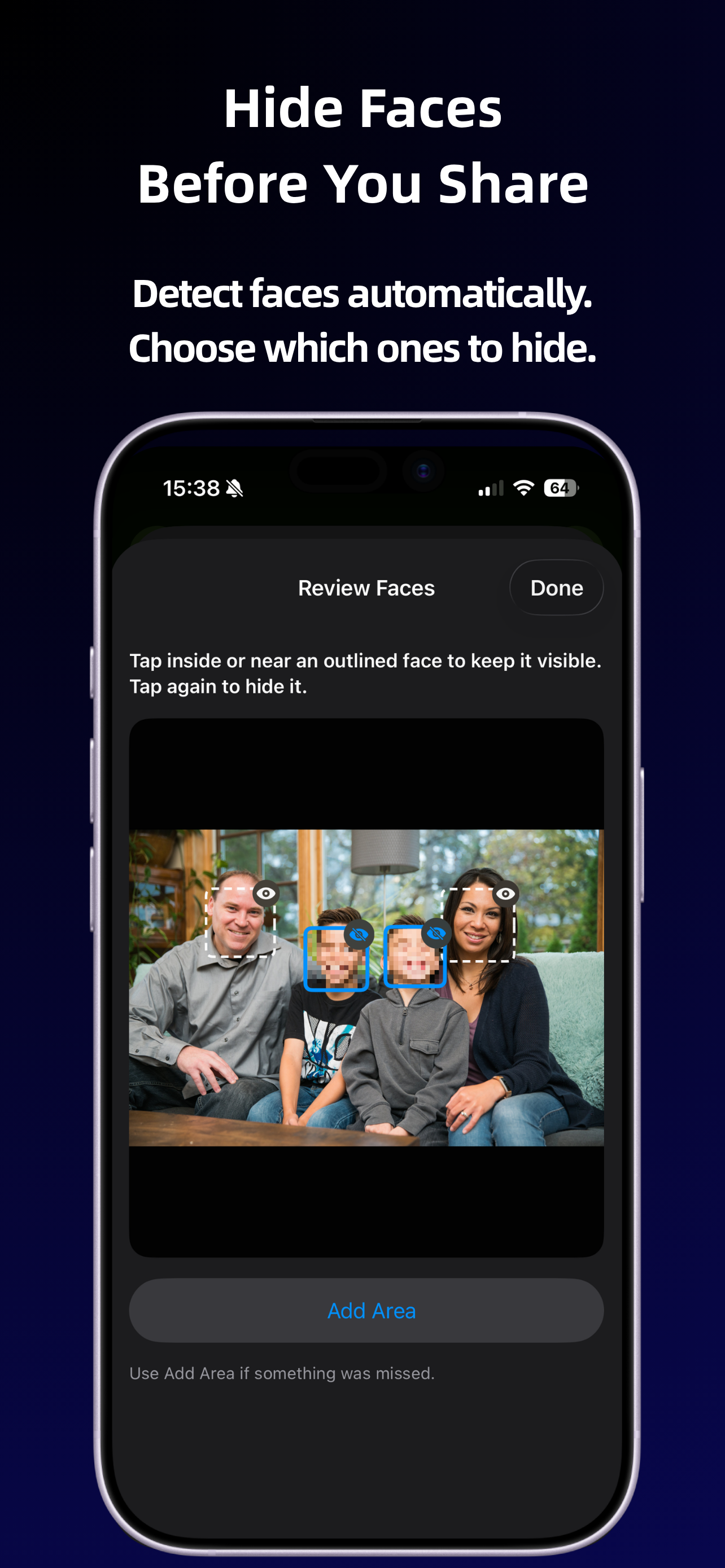
Consider whether the people in the frame should be visible to your intended audience. SafeShare can automatically detect and blur faces in photos. Review the final picture rather than assuming every face was found or every blur area provides the coverage you wanted.
Look at small background faces and partially visible people as well as the central subject. If the result misses someone you intended to obscure, pause before sharing. Use a separately verified editing method or choose another photo. The face blur guide explains this review in more detail.
Look for visible background clues
Addresses, delivery labels, name badges, screens, reflections and recognizable landmarks can communicate information directly through the pixels. Cleaning GPS fields does not remove a photographed street sign. Blurring a face does not remove a name badge or stop a familiar setting from suggesting who was present.
SafeShare's supported metadata cleanup and face blur should not be described as general background or object removal. If visible content needs changing beyond those features, use an appropriate editor or take a new picture with different framing. Review the resulting image again before you send it.
A practical pre-share routine
- Choose the image and audience. Check that the picture communicates what you intend and that it is appropriate for the recipient or posting destination.
- Open Share and choose SafeShare. Put the preparation step before final delivery.
- Review the detected metadata. Note any location, capture date or device details found in this file. Decide whether a clean copy meets your sharing goal.
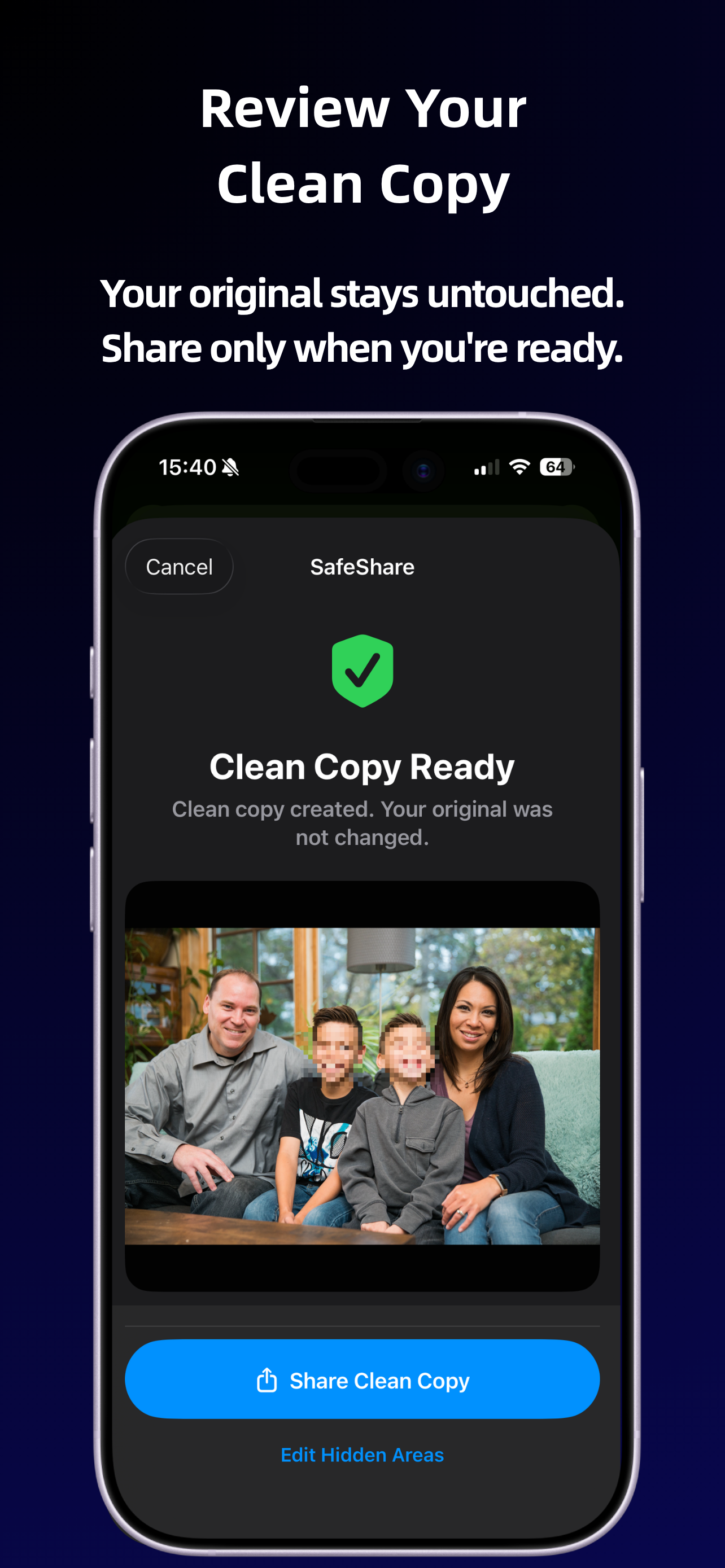
- Create the clean copy. Remove supported metadata and optionally use automatic face blur for a photo.
- Review the visible result and caption. Check face coverage and context. A caption naming someone can still identify them even when their face is blurred.
- Send the intended copy. Share the cleaned version onward, rather than returning to the original and bypassing the preparation step.
What stays local, and what happens afterward?
SafeShare processes supported media on your device. It requires no account and does not upload photos, videos or metadata to its servers. According to the privacy policy, temporary clean copies serve the share flow and are usually deleted after sharing or cancellation. The app does not use third-party tracking tools or external analytics services.
Local preparation does not determine what a recipient does with a sent image or how your chosen service stores it. SafeShare is not a secure messaging or encryption service. Choose your delivery destination and audience as separate decisions from the file cleanup.
What does “more private” mean here?
It means preparing a copy with fewer supported embedded details and, when appropriate, less visible face information. It does not mean total anonymity, guaranteed identity protection or removal of all contextual clues. Some file details may remain depending on format, source app, iOS and destination.
The original remains unchanged, so repeat the preparation when sharing that original again. Follow the clean-copy sharing workflow for the complete sequence. A useful final check is whether the copy, caption and audience together match what you intended to share.