Photo preparation guide
How to Share a Photo Without Metadata on iPhone
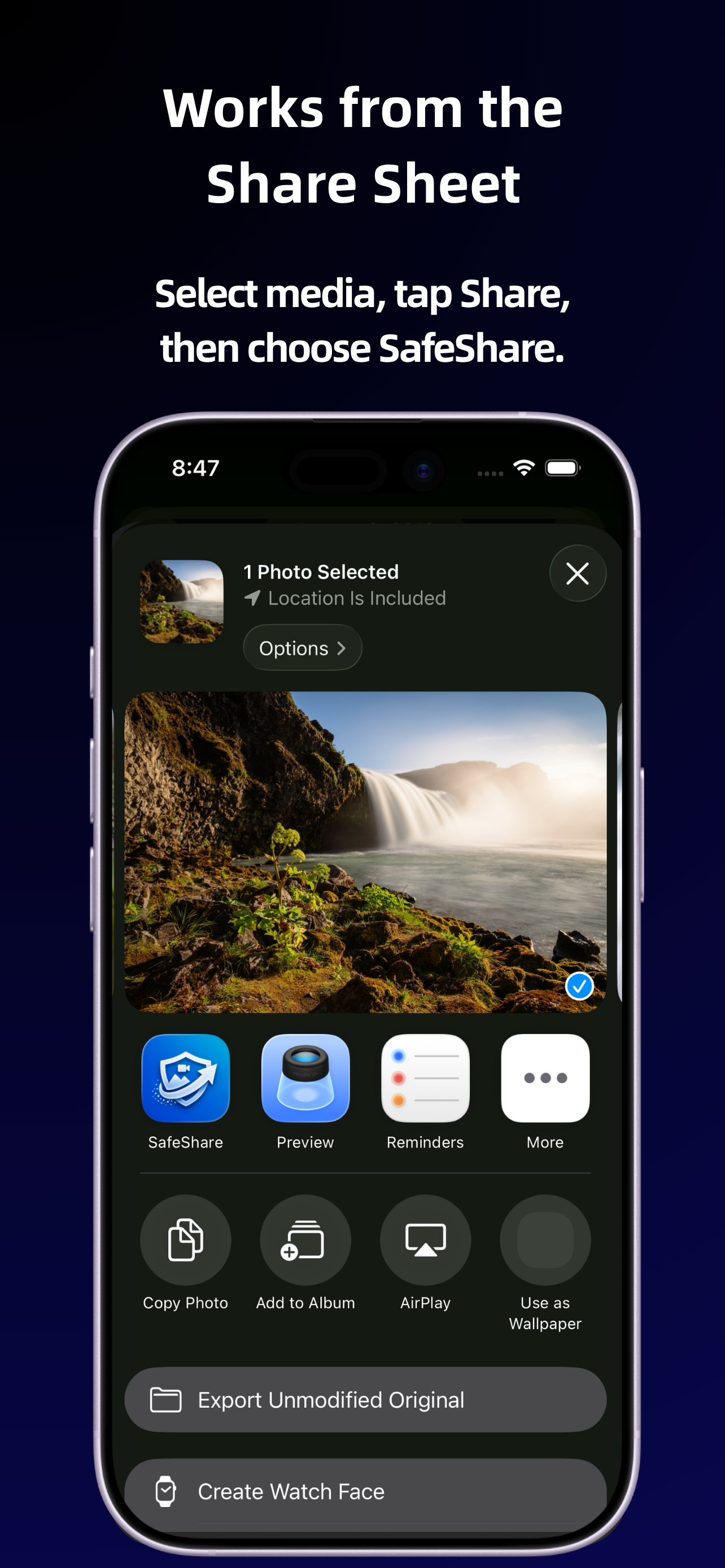
To share a photo with supported metadata removed on iPhone, select it, tap Share and choose SafeShare. Review the detected details, create a clean copy, optionally blur faces, and share the new version onward. SafeShare leaves the original unchanged. “Without metadata” here means cleanup of supported hidden details, not a guarantee that every file property disappears.
Why clean the photo before choosing a recipient?
A sharing workflow has two separate decisions: which file you are sending and where you are sending it. Preparing a clean copy first lets you decide what embedded information accompanies the picture before delivery. This is useful when you want to keep your original's capture details in your library but send less information to someone else.
Different sharing destinations handle files differently. You should not assume that a service always preserves all metadata or always strips it. Apple's photo sharing guide explains that sharing can include associated information and that sharing options affect the result. Cleaning your copy is a step you can take before handing it to another app.
The SafeShare Share Sheet workflow
- Choose the photo. In Photos or another source app, select the exact image you intend to send. Check its content and framing before you begin.
- Open the iPhone Share Sheet. Tap Share and choose SafeShare, putting the cleanup step before the final destination.
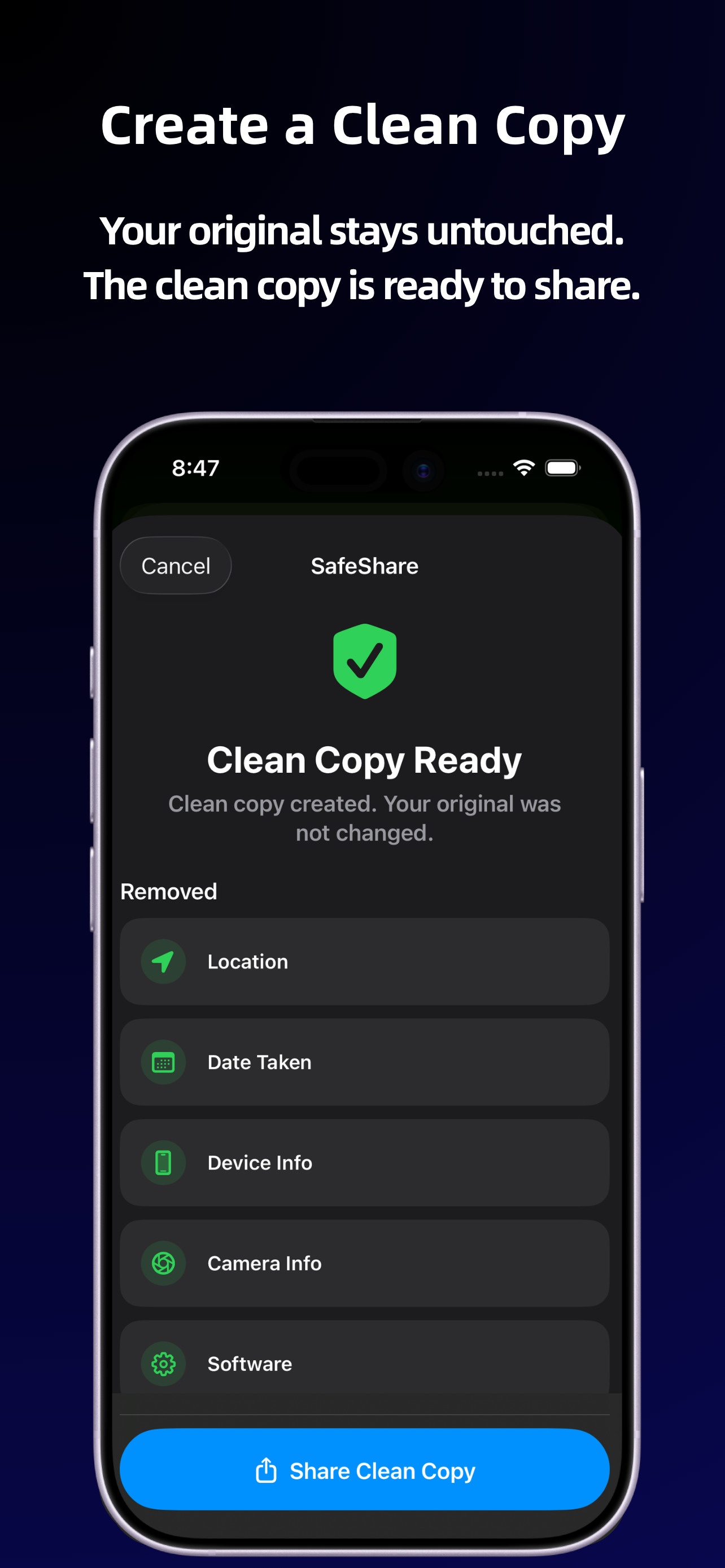
- Review detected metadata. SafeShare shows information it finds, which can include location, date, device, camera and software details. Actual fields vary between photos.
- Prepare the clean copy. Remove supported metadata and optionally use automatic face blur for the photo if that fits your purpose.
- Review the picture. Confirm that the right photo is being prepared and that any intended face blur covers the relevant areas. Metadata removal itself does not hide visible scene details.
- Share the cleaned version onward. Choose your destination from the output flow. Your original remains unchanged, so avoid reselecting it when you meant to send the cleaned copy.
What does SafeShare remove?
SafeShare removes common hidden metadata where possible, including supported location, date, device, camera and software information. It shows detected details before creating the cleaned copy. It does not promise that every field in every possible image format will be removed.
If your main concern is coordinates, read how to remove location from a photo. If you want to understand the broader cleanup, the photo metadata guide explains which kinds of details may be present and why a clean copy can be useful.
Does the original lose its information?
No. SafeShare creates a separate clean copy and leaves the original photo untouched. You can keep the original for your own archive while sharing the prepared version. This distinction is useful, but it makes file selection important: cleaning once does not change every future share of the original.
For example, if you prepare a photo for one group today and later open the original to send it to another person, the later share is not automatically the cleaned version. Repeat the cleanup workflow or use a copy you have deliberately retained and verified for that purpose.
Where does processing happen?
SafeShare processes supported photos and videos on your device, requires no account, and does not upload media to a SafeShare server. The privacy policy says temporary clean copies are used for the share flow and are usually deleted after sharing or cancellation. It also describes stale-file cleanup and clearing temporary files in app settings.
Those temporary files should not be treated as a permanent archive. If you need to retain an output, use an available save destination deliberately and verify the saved file. Once you send the copy through another app, that service's delivery and storage behavior are separate from SafeShare's local processing.
What should you check before sending?
Look for visible names, addresses, labels and recognizable surroundings. Check faces if you used blur, and check the recipient and any caption. If you need to inspect metadata afterward, inspect the cleaned output rather than the original. A viewer's information panel reports the fields it understands, not necessarily every possible file detail.
Removing metadata does not guarantee anonymity or prevent a recipient from recognizing the scene. Optional face blur is also subject to detection and coverage limits. See how to review face blur for that part of preparation. A useful routine is to select, clean, review and send the intended copy each time.