Photo preparation guide
How to Remove Location Data From a Photo on iPhone
To remove embedded location data before sharing a photo on iPhone, open the Share Sheet and choose SafeShare. Review any location information it detects, create a cleaned copy, and send that version. SafeShare leaves your original untouched. If you only want to exclude location in a Photos share, Apple's built-in sharing options also offer a location control.
Why can a photo contain location?
When the Camera app has location access, location information can be associated with the pictures it takes. This is useful for remembering where a picture was made and organizing images by place. Embedded coordinates are often called GPS metadata or a geotag, though the device can determine its location using more than GPS alone.
A photo does not always have location data. Camera permissions, the source of the image and earlier export or sharing steps can affect what is present. A picture received from someone else may have different fields from one you took yourself. Check the actual photo rather than assuming a location is always attached.
Exclude location using Photos
In Photos on iPhone, select the picture and tap Share. Tap Options, turn off Location, then complete the share. This is a useful built-in choice when your immediate goal is to omit location from that Photos sharing flow. Apple's location metadata instructions explain the control and how Camera location permissions affect future pictures.
Turning off location for a share does not mean you have removed every other kind of metadata or changed visible image content. It also differs from changing location permissions for future photographs. Choose the action that matches your goal: one outgoing copy, a change to a library item, or a change to how new photos are captured.
Prepare a clean copy with SafeShare
- Select the photo. Use the original image you want to prepare, rather than an unrelated download or a previously edited version whose origin you are unsure about.
- Open Share and choose SafeShare. Bring the image into SafeShare before choosing the final sharing destination.
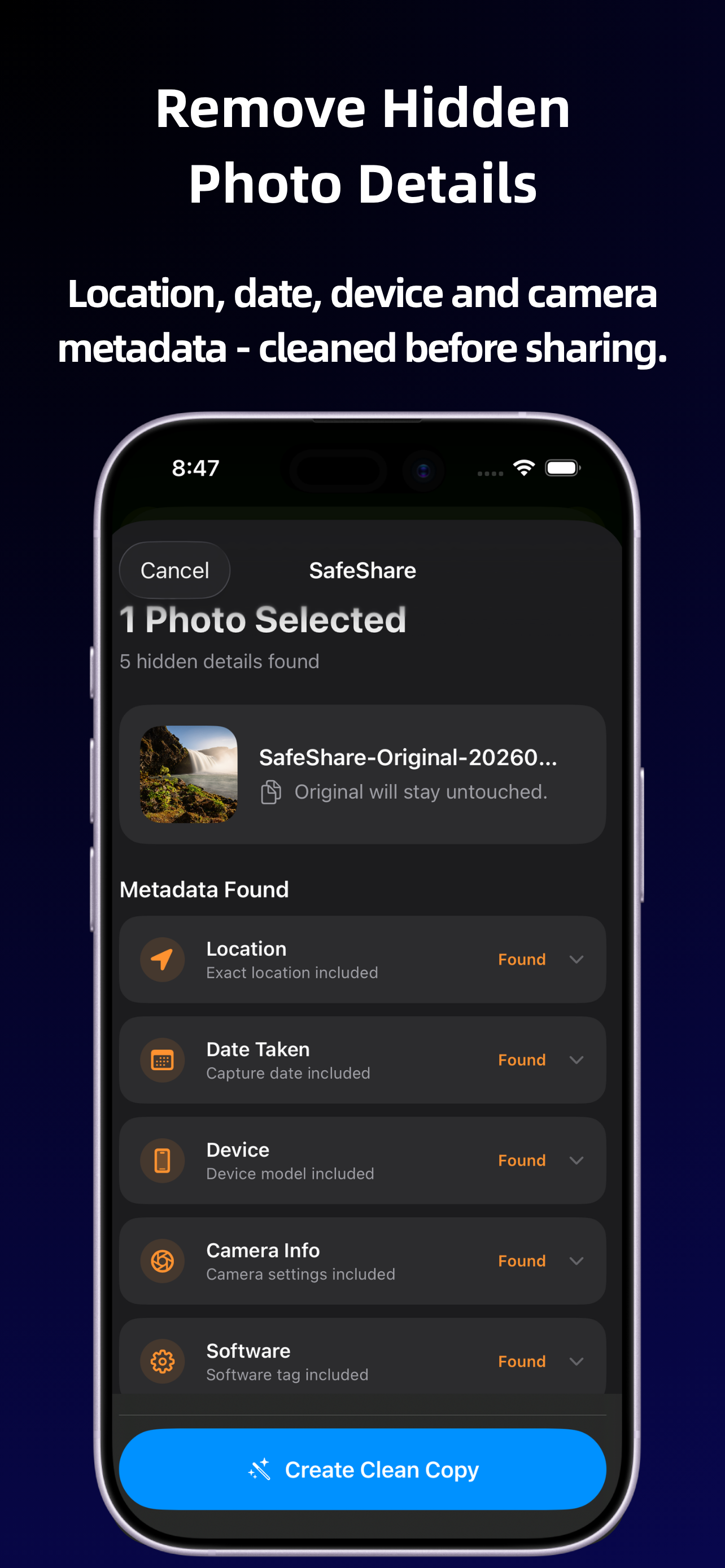
- Read the detected metadata. Look for embedded location information when present. SafeShare also shows other detected details, so you can review more than coordinates.
- Create the cleaned copy. SafeShare removes supported metadata, including embedded location where possible. The original photo remains unchanged.
- Review and share the output. Send the new copy onward. If you return to Photos and choose the original again, that is a different file from the one you cleaned.
How can you check the result?
If you save a cleaned copy and inspect its information, make sure you are inspecting that specific output. A map attached to the original says nothing about the cleaned version. A viewer can help confirm whether the location fields it understands are present, but a missing map is not proof that every possible file detail has been removed.
What remains can depend on the format, source app, iOS behavior and destination. Another app can create new file information during an export. For a wider cleanup goal, use the photo metadata removal guide, which covers date, device and camera information as well as location.
Does removing GPS hide the place in the picture?
No. Embedded coordinates and the visible scene are separate. A street name, recognizable building, event sign or view from a window can still identify a place. Removing a geotag does not change any of those pixels. Review the image for visible context before sending it to a new audience.
For example, a photo of an item for sale may no longer include coordinates after cleanup, but a delivery label or recognizable exterior can still appear in the frame. Choose a different composition or edit those visible details separately if they are not appropriate to share. SafeShare does not promise general background or object removal.
Keep location cleanup in perspective
Removing location metadata is a practical way to send less embedded information; it does not guarantee anonymity. SafeShare performs supported processing on-device without uploading your media to its servers. Your chosen sharing app then handles delivery under its own behavior and policies.
Read what information can be stored in a photo to understand the other fields you might encounter, or follow the clean-copy sharing workflow when you are ready to send.