Camera Currency Converter for iPhone
Yes. Currency Converter Lens is an iPhone currency converter that can use the camera to detect visible prices and convert them into another currency. Point your iPhone at a menu, shelf label, or price tag, choose the detected amount, and confirm it to see the conversion. You can avoid typing each price when the camera reads it correctly.

Can I use my iPhone camera to convert prices?
A camera currency converter combines two steps: reading a visible number and converting that amount between currencies. Currency Converter Lens puts those steps in a travel-focused iPhone app. Instead of reading a price, remembering it, and entering it on a keypad, you aim the camera at the amount and review what the scanner detects.
The currency choice still matters. Set the price currency to the one used by the shop or restaurant and the result currency to the one you want to compare against. A familiar symbol alone may be ambiguous: several currencies use a dollar sign, and several use “kr”. Confirm the selected currencies rather than relying only on the printed symbol.
How does a camera currency converter work?
- Choose the currency of the displayed price and your preferred result currency.
- Allow an exchange-rate update while connected so a rate is available for conversion.
- Open the price scanner and place a clearly visible amount inside the camera frame.
- Review the detected amount. When there are several candidates, choose the price you intended to scan.
- Confirm the amount and read the approximate result in your chosen currency.
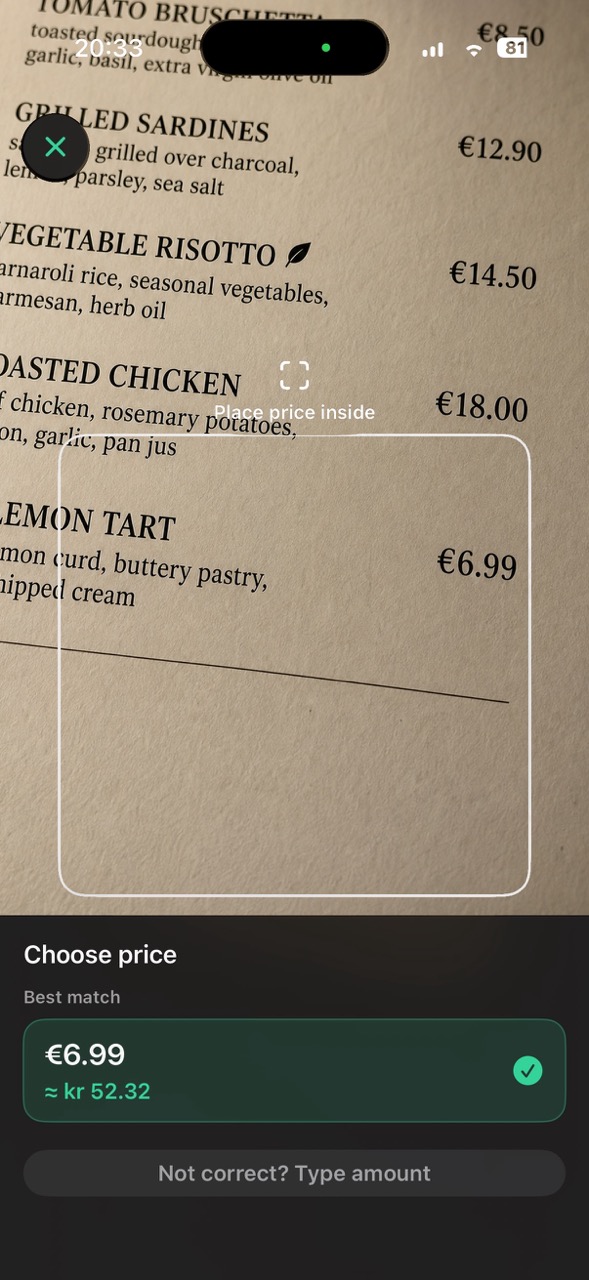
For example, the app’s scanner screenshot shows a €6.99 menu price selected with an approximate result in Danish kroner. That image illustrates the workflow, rather than today’s exchange rate. The conversion screen also shows the date of the rate used, which helps you judge how recent your estimate is.
Can I convert foreign prices without typing them?
Yes, camera scanning can remove the amount-entry step when the visible price is detected correctly. That is especially useful when comparing several items: scan a café price, check the result, then move to another amount. You do not have to remember each number while switching back to a manual keypad.
Manual conversion remains available when a scan is inconvenient. Type the amount if the label is too small, the display is far away, or you already know the price. Camera and manual entry serve the same purpose; choose whichever lets you enter the correct number with less effort in that situation.
Does it work with menus and price tags?
Visible prices on printed menus, supermarket shelf labels, and shop price tags are practical scanning targets. Aim at the individual amount you want, rather than trying to understand a whole menu or shelf at once. A restaurant menu with several portion sizes and a supermarket label with a unit price both require you to identify the relevant price first.
Clear lighting and readable print help. On glossy labels, changing the angle can reduce reflections. On a digital menu board, move closer if the numbers are too small to read clearly. Scanning the price helps with currency conversion; it does not tell you which portion, offer, or product the number belongs to.
What happens if the scan is imperfect?
Verify the detected amount against the original before relying on the result. Check the decimal separator and every digit, particularly on crowded labels where barcodes, product codes, and other numbers appear nearby. Detection can be affected by glare, blur, small text, and layout.
If the scanner chooses the wrong amount, try a clearer view or use the manual amount-entry option. There is no need to keep rescanning difficult text. Typing a verified number is a useful fallback, and avoids treating a confident-looking conversion as evidence that the original price was read correctly.
Does a camera currency converter work offline?
Currency Converter Lens supports conversion with saved exchange rates after setup and a successful rate update. When connectivity is unavailable, conversion uses the last saved rate. Offline use does not create a new market rate, and an older rate may be less representative of current exchange conditions.
Update rates before leaving reliable internet access and check the displayed rate date. Whether you scan or type the amount, the result is an estimate and may differ from what your bank, card issuer, ATM, or merchant charges. Unlimited camera scans are available through the app’s existing one-time Pro purchase; manual conversion remains available without Pro.