How to Scan and Convert Prices While Traveling Abroad
To convert prices while traveling abroad, choose the local currency and your home currency in Currency Converter Lens, point your iPhone camera at a visible price, and confirm the detected amount. The app converts it using the available exchange rate. This can reduce repeated typing when checking menus, shelf labels, and price tags.

What should I set up before I travel?
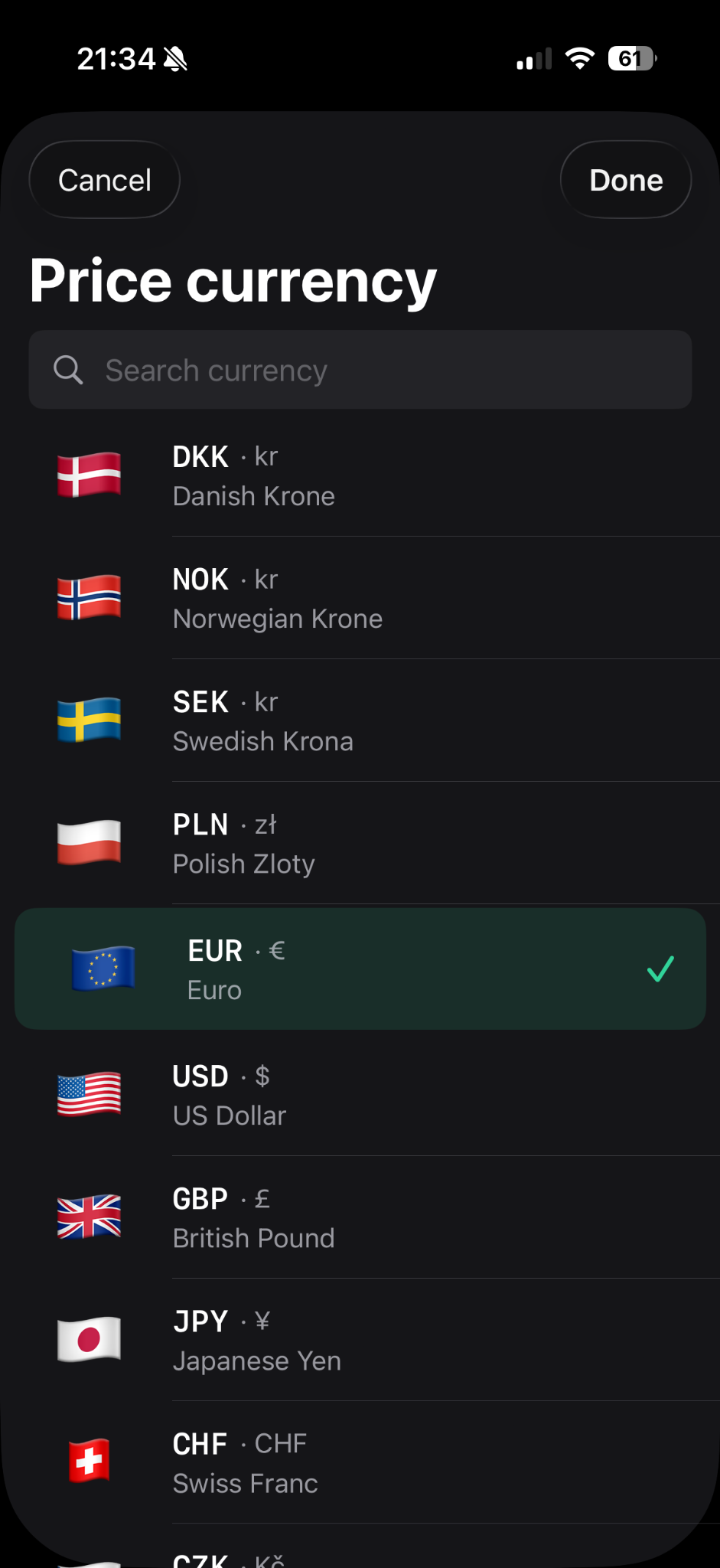
Choose the currency you expect to see at your destination and the currency you normally use to judge a purchase. Make a conversion while connected and let the exchange-rate update complete before relying on the app offline. The conversion screen shows a rate date; check it when preparing the app for your trip.
At a new destination, confirm the price currency again. Shops in tourist areas may display more than one currency, and familiar symbols can refer to different currencies. Matching the app’s selected currency to the printed price is just as important as entering the correct number.
How do I scan a foreign price?
- Find the amount attached to the item, ticket, or service you want to check.
- Open the camera price scanner and frame that amount clearly.
- Compare the detected digits and decimal separator with the original.
- Select the intended amount if several prices are detected, then confirm it.
- Read the result in your chosen currency and use it as a price estimate.
Currency Converter Lens is an iPhone currency converter that uses the camera to detect visible prices. It helps with amount entry and conversion, but you still decide what the price represents. If scanning is awkward, type the same amount in the manual converter.
Where is a travel price scanner useful?
In a supermarket, scan the shelf label for the pack you plan to buy. A shelf can show both a pack price and a price per kilogram, so identify the right number before accepting it. In a souvenir shop or shopping mall, aim at the price tag on the particular item instead of neighboring labels.
At a café, compare a drink or pastry price without retyping each amount. In a restaurant, check a dish or a set-menu price, keeping portion sizes and separate extras in mind. A camera currency converter helps you compare the numbers; it does not translate dish names or decide what is included in a meal.
At a train station, a visible fare can be converted once you have identified the correct route and ticket type. At a hotel, a posted breakfast or service price is another possible target. Verify whether a hotel price is per person, per night, or per stay before using the converted amount to judge the cost.
Why scan instead of typing every price?
Manual conversion involves reading the number, keeping it in mind, entering it, and checking the result. Camera scanning can shorten that process by detecting the visible amount for you. The advantage becomes more apparent when looking at several supermarket products or comparing options on a restaurant menu.
It is a workflow convenience rather than a guarantee of speed in every situation. A crowded sign, poor lighting, or a distant display can make manual entry quicker. Keep the app ready for repeated checks, but switch to typing whenever it gives you a clearer route to the right amount.
How can I avoid a misleading result?
Start by checking the input. A scanner may detect a product code, a unit price, or the wrong line on a menu. A correct conversion of the wrong number will still be misleading. Verify the original amount, the selected currencies, and the direction of the conversion before comparing it with your budget.
Next, check what is included in the displayed price. Offers may depend on buying several items, and service charges or other costs may be shown separately. The app converts the amount you select; it does not calculate an entire purchase or add charges that are absent from that amount.
Finally, remember that the result uses an exchange rate, not your final payment terms. Your bank, card issuer, ATM, or merchant may apply a different rate or fees. A converted shelf or menu price is useful for quick decisions, while the actual charge can differ.
Can I convert prices with no mobile data?
After a successful update, saved rates let Currency Converter Lens continue converting offline. This is useful in a shop with poor reception or when you are avoiding mobile data charges. Offline conversion uses the last saved rate, which may not reflect recent market movement.
Update while connected before heading out, especially after changing your travel currency. Check that the selected currencies have a usable saved rate. If you need a more current estimate, refresh when connectivity returns rather than assuming an offline result is based on a fresh rate. Pro offers unlimited camera scans through a one-time purchase, and manual conversion remains available without Pro.