How to Convert Menu Prices With Your iPhone Camera
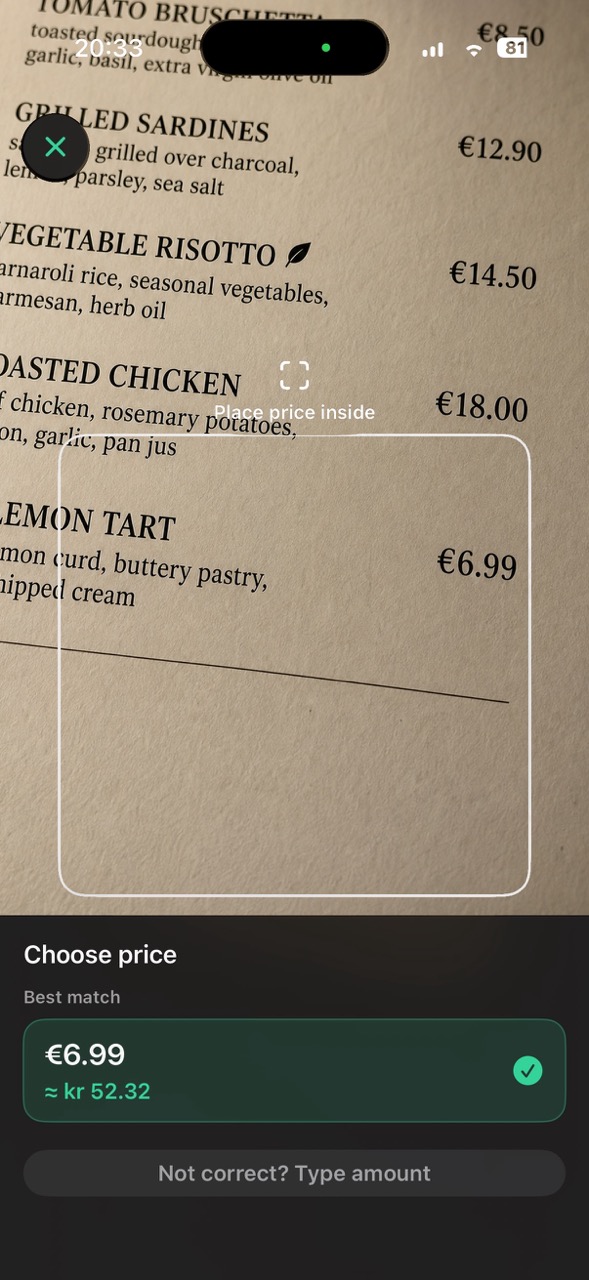
To convert a foreign menu price, select the menu’s currency and your preferred result currency in Currency Converter Lens. Point your iPhone camera at the visible amount, choose and verify the detected price, then confirm it to see the conversion. You can check restaurant or café prices without retyping each correctly detected amount.

How do I convert restaurant menu prices while traveling?
Start with one price you want to understand, rather than the entire menu. Currency Converter Lens is an iPhone currency converter that can detect visible amounts through the camera and convert the selected number into another currency. Set the source currency to the one used on the menu and the result currency to your home currency or another familiar reference.
Allow a rate update while connected before relying on conversion. Then open the scanner, frame the menu price, compare the detected amount with the print, and confirm it. Read the result as an approximate value. You can repeat the process for another dish without manually entering every price.
Which menu prices can I point the camera at?
Printed restaurant menus, café price lists, food-court boards, and hotel restaurant menus all present visible amounts that you can try to scan. A digital menu board can also be a target when the price is clearly visible to the camera. Distance, glare, and display readability may make some boards harder to scan than a printed menu in your hand.
At a café, you might check a coffee and then a pastry. In a restaurant, you might compare two main dishes. At a hotel restaurant, you might look at a buffet price or a separately listed drink. In each case, the task is to convert the particular amount you have identified, rather than analyze the full menu.
How do I choose the right amount on a busy menu?
Menus often place several numbers close together. One dish can have small and large portions, while a set menu may show a per-person price and separate supplements. Before accepting a scan, check that the detected number belongs to the option you actually plan to order.
If several prices are detected, select the intended amount and compare it with the menu. Check the decimal separator and all digits. A missing decimal or a price from the next line can change the result substantially, even if the currency conversion itself is calculated correctly.
Keep extra charges in context. The app converts the selected amount; it does not assemble a full restaurant bill or add service charges that are listed elsewhere. For a useful comparison, consider what each displayed price includes before deciding which option is better value.
What if lighting or layout affects detection?
Hold the iPhone steady and make the individual amount easy to read. If there is glare on a laminated menu, adjust the camera angle. If several columns crowd the frame, focus on the relevant price. Better lighting and a clearer view may help, but recognition is not guaranteed.
When the scanner detects the wrong number, try another view or use the option to type the amount. A stylized typeface, small decimal mark, or dim restaurant can make manual entry the practical choice. Verify the typed number too, especially when a local number format differs from the one you are used to.
Does scanning a menu translate dish names?
The workflow here is visible price detection and currency conversion. It does not translate food names, explain ingredients, or identify dietary information. You still need to establish which dish and portion the price refers to, using the menu and any clarification from the restaurant.
This distinction makes the conversion more useful: knowing that an amount is roughly familiar helps you compare cost, but it does not explain what you will receive. Review the menu’s own labels for portion sizes and inclusions. Use the converted figure alongside that information when choosing what to order.
Can I convert menu prices without mobile data?
After setup and a successful update, Currency Converter Lens can use saved exchange rates offline. Prepare before entering a restaurant with unreliable connectivity. The conversion uses the last available saved rate, which may not reflect the newest market movement.
Check the rate date shown on the conversion screen. Both scanned and manually entered menu amounts use the available rate, so typing does not change its freshness. Your bank or card issuer may apply a different rate or fees when you pay; the app’s result is an estimate rather than the final charge.
Camera scanning can reduce typing when checking several dishes, while manual conversion remains available without Pro for difficult menus or known amounts. The existing one-time Pro purchase unlocks unlimited camera scans, which can be useful for repeated price checks during a trip.